
Accept our CASSA invitation
The 1st step in the process is receiving and accepting the invite from the CASSA system.
Once you've done this, you're taken to the CASSA registration page to add your own details. This includes your company name (please, no spelling mistakes).
You'll then need to read and accept the terms, verify the email that's sent to you, and then you can access the full, free functionality of the CASSA system.

Complete your profile
When you login to the CASSA system for the first time, you will need to complete your personal profile - everyone in CASSA has one of these.
Note: You will only have limited functionality until you do complete the bare minimum requirements, so please bear that in mind.
You only have to complete this the once and then you can move onto the next step.

Invite your Employees to your Company
The best way to invite your employees to the system is to actually create their profiles for them. Doing it this way will make it easier all round, and will ensure that you don't get delayed in setting up other tasks, such as projects, while you're waiting on them.
You can do this individually or via bulk, spreadsheet import. If you've got more than a few employees, then we thouroughly recommend the latter - it's just quicker and easier to do.

Complete Project Review Form
Certain projects will require that a Project Review Form needs to be submitted prior to assigning employees to that project. When this occurs, then a View & Submit Project Review Form button will be available.
Click on that and you will be able to select your employees and assign them to the project. (You couldn't do this if you didn't invite/set them up before.)

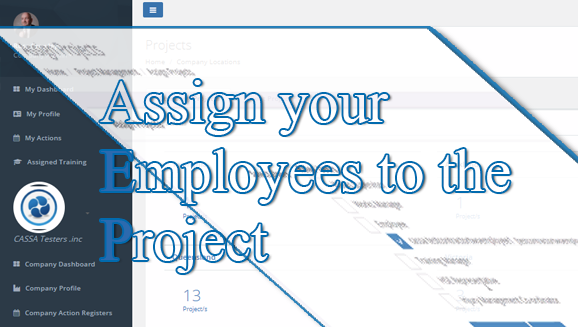
Assign your Employees to the Project
Once the project's setup, you can now assign employees to it.
- Click on the Assign Employees button
- Select the employees you want
- Click on Project Assign.
That's it.
Complete Contractor Reporting Requirements
For the Reporting Requirements, you will need to complete the required forms and export them directly into the relevant CASSA system repository listed in the Contractor Reporting area.
It's simple to do, but you first do this on the app, and then you close out the reporting requirements on the web app.

Permit to Work
A Work Permit Request Form must be submitted to the Project Safety Coordinator for all work that requires a permit.
This form is in the CASSA app and, if you've already followed the procedure above, you'll have seen how to access the form.
Once complete, the Work Permit Request form is then emailed to the Project Safety Coordinator via the CASSA App. The coordinator will then complete the process and issue the permit prior to work commencing.
